Hướng dẫn lập trình cơ bản với Android phần 19

Đầu tiên là tạo 1 giao diện điều khiển service chơi nhạc bằng layout đơn giản :

Mã:

<LinearLayout xmlns:android="http://schemas.android.com/apk/res/android" android:orientation="vertical" android:padding="4dip" android:gravity="center_horizontal" android:layout_width="fill_parent" android:layout_height="fill_parent">

<TextView android:layout_width="fill_parent" android:layout_height="wrap_content" android:layout_weight="0" android:paddingBottom="4dip" android:text="@string/local_service_binding"/>

<Button android:id="@+id/bind" android:layout_width="wrap_content"

android:layout_height="wrap_content" android:text="@string/bind_service">

<requestFocus />

</Button>

<Button android:id="@+id/unbind" android:layout_width="wrap_content"

android:layout_height="wrap_content" android:text="@string/unbind_service">

</Button>

<Button android:id="@+id/play" android:layout_width="wrap_content"

android:layout_height="wrap_content" android:text="@string/Play">

</Button>

</LinearLayout>

Tạo 1 class LocalService.java extend từ Service và một lớp con LocalBinder thừa kế từ lớp Binder ( dùng để điều khiển service )

Mã:

public class LocalService extends Service {

public class LocalBinder extends Binder {

LocalService getService() {

       return LocalService.this;

}

}

}

Từ đó nạp chồng phương thức onBind bằng cách trả lại giá trị mBinder

Mã:

private final IBinder mBinder = new LocalBinder();

@Override

public IBinder onBind(Intent intent) {

return mBinder;

}

Tạo một đối tượng MediaPlayer chơi nhạc đơn giản ( sử dụng để chơi file abc.mp3 đặt trong folder res/raw ):

Mã:

MediaPlayer mMediaPlayer;

public void startMp3Player() {

mMediaPlayer =MediaPlayer.create(getApplicationContext(),

R.raw.abc); mMediaPlayer.start();

}

public void mp3Stop() {

mMediaPlayer.stop();

mMediaPlayer.release();

}

Ở lớp LocalServiceBinding.java extend từ lớp Activity chúng ta chỉ cần để ý đến đối tượng mConnection có nhiệm vụ giám sát kết nối của service chơi nhạc.

Mã:

private ServiceConnection mConnection = new ServiceConnection() {

public void onServiceConnected(ComponentName className, IBinder service) {

mBoundService = ((LocalService.LocalBinder)service).getService();

Toast.makeText(LocalServiceBinding.this, R.string.local_service_connected,

Toast.LENGTH_SHORT).show();

}

public void onServiceDisconnected(ComponentName className) {

mBoundService = null;

Toast.makeText(LocalServiceBinding.this,

R.string.local_service_disconnected, Toast.LENGTH_SHORT).show();

}};

Và xử lý sự kiện 3 button ( Bind, Unbin, Play/Stop )

Mã:

private OnClickListener mBindListener = new OnClickListener() {

public void onClick(View v) {

bindService(new Intent(LocalServiceBinding.this, LocalService.class), mConnection, Context.BIND_AUTO_CREATE); mIsBound = true; mPlayButton.setEnabled(true);

}};

private OnClickListener mPlayListener = new OnClickListener() {

public void onClick(View v) {

if(mPlayButton.getText() == "Play"){

            mBoundService.startMp3Player(); mPlayButton.setText("Stop");

}

else{

       mBoundService.mp3Stop(); mPlayButton.setText("Play");

}

}};

private OnClickListener mUnbindListener = new OnClickListener() {

public void onClick(View v) {

      if (mIsBound) {

             unbindService(mConnection); mIsBound = false;

             mPlayButton.setEnabled(false);

     }

}};

Hướng dẫn lập trình cơ bản với Android phần 18

Android Service

4 Tutorial trước các bạn đã có 1 lượng kiến thức kha khá, tiếp sau đây mình xin giới thiệu 1 khái niệm cơ bản nữa trong android, đó là Service

Service là 1 trong 4 thành phần chính trong 1 ứng dụng Android ( Activity, Service, BroadcastReceiver, ContentProvider) thành phần này chạy trong hậu trường và làm những công việc không cần tới giao diện như chơi nhạc, download, xử lí tính toán…

Một Service có thể được sử dụng theo 2 cách:

- Nó có thể được bắt đầu và được cho phép hoạt động cho đến khi một người nào đó dừng nó lại hoặc nó tự ngắt. Ở chế độ này, nó được bắt đầu bằng cách gọi Context.startService() và dừng bằng lệnh Context.stopService(). Nó có thể tự ngắt bằng lệnh Service.stopSelf() hoặc Service.stopSelfResult(). Chỉ cần một lệnh stopService() để ngừng Service lại cho dù lệnh startService() được gọi ra bao nhiêu lần

- Service có thể được vận hành theo như đã được lập trình việc sử dụng một Interface mà nó định nghĩa. Các người dùng thiết lập một đường truyền tới đối tượng Service và sử dụng đường kết nói đó để thâm nhập vào Service. Kết nối này được thiết lập bằng cách gọi lệnh Context.bindService() và được đóng lại bằng cách gọi lệnh Context.unbindService(). Nhiều người dùng có thể kết nối tới cùng một thiết bị. Nếu Service vẫn chưa được khởi chạy, lệnh bindService() có thể tùy ý khởi chạy nó. Hai chế độ này thì không tách biệt toàn bộ. Bạn có thể kết nối với một Service mà nó đã được bắt đầu với lệnh startService(). Ví dụ, một Service nghe nhạc ở chế độ nền có thể được bắt đầu bằng cách gọi lệnh startService() cùng

với một đối tượng Intent mà định dạng được âm nhạc để chơi. Chỉ sau đó, có thể là khi người sử dụng muốn kiểm soát trình chơi nhạc hoặc biết thêm thông tin về bài hát hiện tại đang chơi, thì sẽ có một Activity tạo lập một đường truyền tới Service bằng cách gọi bindService(). Trong trường hợp như thế này, stopService() sẽ không thực sự ngừng Service cho đến khi liên kết cuối cùng được đóng lại.

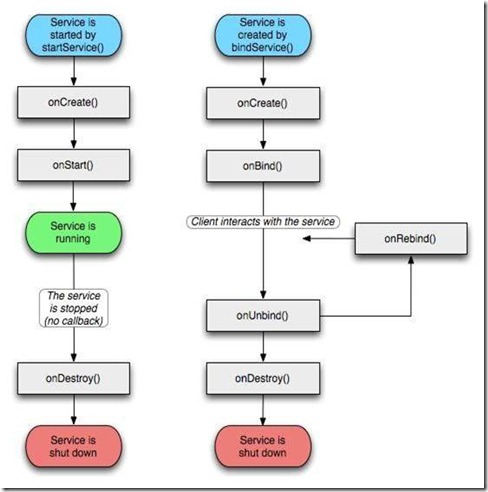
Giống như một Activity, một Service cũng có các phương thức chu kỳ thời gian mà bạn có thể cài đặt để kiểm soát những sự thay đổi trong trạng thái của nó. Những những phương thức của Service thì ít hơn là của Activity – chỉ có 3- và chúng thì được sử dụng rộng rãi, không được bảo vệ.

void onCreate()

void onStart(Intent intent) void onDestroy()

Bằng việc thực hiện những phương thức này, bạn có thể giám sát 2 vòng lặp của chu kỳ thời gian của mỗi Service

Entire lifetime của một Service diễn ra giữa thời gian onCreate() được gọi ra và thời gian mà onDestroy() trả lại. Giống như một Activity, một Service lại tiết hành cài đặt ban đầu ở onCreate(), và giải phóng tát cả các tài nguyên còn lại ở onDestroy() Ví dụ, một Service phát lại nhạc có thể tạo ra một luồng và bắt đầu chơi nhạc onCreate(),và sau đó luồng chơi nhạc sẽ dừng lại ở onCreate(),

Active lifetime của một Service bắt đầu bằng một lệnh tới onStart(). Đâylà phương thức được chuyển giao đối tượng Intent mà đã được thông qua để tới startService() Service âm nhạc sẽ mở đối tượng Intent để quyết định xem sẽ chơi loại nhạc nào và bắt đầu phát nhạc.

Không có callback tương đương nào cho thời điểm Service ngừng lại – không có phương thức onStop()

Các phương thức onCreate() và onDestroy() được gọi cho tất cả các Service dù chúng có được bắt đầu bằng Context.startService() hoặc Context.bindService() hay không. Tuy nhiên thì, onStart() chỉ được gọi ra đối với các Service bắt đầu bằng startService().

Nếu một Service cho phép những Service khác kết nối với nó thì sẽ có thêm các phương thức callback dành cho Service đó để thực hiên

IBinder onBind(Intent intent) boolean onUnbind(Intent intent) void onRebind(Intent intent)

Hàm callback onBind() thông qua đối tượng Intent đã đựoc truyền đến bindService và onUnbind() được chuyển giao đối tượng mà đã được chuyển đến. Nếu Service

đang được chỉ định (binding), onBind() quay trở lại kênh thông tin mà người dùng sử dụng để tương tác với Service. Phương thức onUnbind() có thể yêu cầu onRebind() được gọi nếu một người dùng kết nối với Service

Biểu đồ dưới đây minh họa cho các phương thức callback giành cho một Service. Mặc dù, nó phân tách các Service được tạo ra thông qua startService với các Service mà được tạo ra bằng bindService(). Hãy nhớ rằng bất kì Service nào, cho dù nó được khởi tạo như thế nào thì nó vẫn có thể cho phép các người dùng kết nối tới nó một cách hiệu quả nhất, cho nên bất kì Service nào cũng có thể được chỉ định thông qua các các phương thức onBind()và onUnbind()

lap trinh android co ban

Service LifeCycle

Các bạn đã đọc và hiểu về Service trong Part 1. Tiếp theo mình sẽ làm 1 demo nhỏ để các bạn hiểu rõ hơn về Service. Demo tạo 1 service chơi nhạc và người sử dụng có thể điều khiển service này.

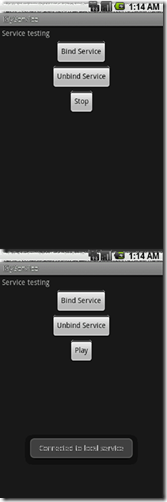
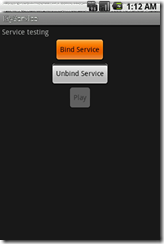
Giao diện chương trình :

lap trinh android co ban   lap trinh android co ban

Hướng dẫn lập trình cơ bản với Android phần 17

B4: Code code code... So tired... Tutorial is really take time. Chỉnh Example.java:
Mã:

package at.exam;
import android.app.Activity;
import android.os.Bundle;
import android.view.Menu;
import android.view.MenuItem;
import android.view.View;
import android.view.View.OnClickListener;
import android.widget.Button;
import android.widget.TextView;
public class Example extends Activity {
Button button1, button2, button3; Button button4, button5, button6; Button button7, button8, button9; Button button0, buttonStar, buttonClear;
TextView numberView;
/** Called when the activity is first created. */
@Override
public void onCreate(Bundle savedInstanceState) {
         super.onCreate(savedInstanceState); setContentView(R.layout.main);
         numberView = (TextView) findViewById(R.id.number_display);
         button1 = (Button) findViewById(R.id.button1);
         button2 = (Button) findViewById(R.id.button2);
         button3 = (Button) findViewById(R.id.button3);

         button4 = (Button) findViewById(R.id.button4);
         button5 = (Button) findViewById(R.id.button5);
         button6 = (Button) findViewById(R.id.button6);

         button7 = (Button) findViewById(R.id.button7);
         button8 = (Button) findViewById(R.id.button8);
         button9 = (Button) findViewById(R.id.button9);
         button0 = (Button) findViewById(R.id.button0);
         buttonStar = (Button)findViewById(R.id.button_star);
         buttonClear = (Button) findViewById(R.id.button_clear);
         button1.setOnClickListener(this.appendString("1"));
         button2.setOnClickListener(this.appendString("2"));
         button3.setOnClickListener(this.appendString("3"));
         button4.setOnClickListener(this.appendString("4"));
         button5.setOnClickListener(this.appendString("5"));
         button6.setOnClickListener(this.appendString("6"));
         button7.setOnClickListener(this.appendString("7"));
         button8.setOnClickListener(this.appendString("8"));
         button9.setOnClickListener(this.appendString("9"));
         button0.setOnClickListener(this.appendString("0"));
         buttonStar.setOnClickListener(this.appendString("*"));
         buttonClear = (Button) findViewById(R.id.button_clear);


         buttonClear.setOnClickListener(new OnClickListener() {
         public void onClick(View v) {
                   numberView.setText("");
         }});
}
public OnClickListener appendString(final String number) {
        return new OnClickListener() {
               public void onClick(View arg0) {
                        numberView.append(number);
               }};
}
public boolean onCreateOptionsMenu(Menu menu) {
         super.onCreateOptionsMenu(menu);
         menu.add(0, Menu.FIRST, 0,"Exit" ).setIcon(android.R.drawable.ic_delete);
         return true;
}
public boolean onOptionsItemSelected(MenuItem item){
         switch (item.getItemId()) {
                   case Menu.FIRST: {
                           finish();
                          break;
                   }
        }
        return false;
}
}

Code quá đơn giản, mình còn ko thèm comment nữa. Lưu ý có 1 Option Menu để đóng Activity và cũng là đóng luôn ứng dụng.
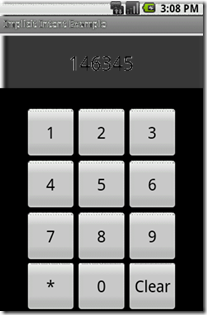
B5: Time to test... Khởi chạy project, rồi sử dụng Option Menu của mình (bấm nút
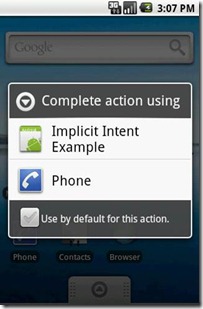
Menu của Emulator hoặc di động Android) để thoát khỏi chương trình. Ok, sau khi chọn Exit ta có thể chắc chắn là ứng dụng đã được đóng hoàn toàn, activity ko còn tồn tại trong stack của Emulator/di động nữa. Giờ nhấn nút Call của Emulator/di động
lap trinh android  lap trinh android

Hướng dẫn lập trình cơ bản với Android phần 16

Đã xong sử dụng Explicit, giờ đến lượt Implicit Intent. Trước khi đi vào ví dụ, hãy dạo qua 1 chút kiến thức về Intent Filter và vai trò của nó.

Intent Filter là gì

Activity, Service và BroadCast Receiver sử dụng Intent Filter để thông báo cho hệ thống biết các dạng Implicit Intent mà nó có thể xử lý. Nói cách khác, Intent Filter là bộ lọc Intent, chỉ cho những Intent được phép đi qua nó.

Intent Filter mô tả khả năng của component định nghĩa nó. Khi hệ thống bắt được 1 Implicit Intent (chỉ chứa 1 số thông tin chung chung về action, data và category...), nó sẽ sử dụng những thông tin trong Intent này, kiểm tra đối chiếu với Intent Filter của các component các ứng dụng, sau đó quyết định khởi chạy ứng dụng nào thích hợp nhất để xử lý Intent bắt được. Nếu có 2 hay nhiều hơn ứng dụng thích hợp, người dùng sẽ được lựa chọn ứng dụng mình muốn.

VD:

Mã:

<activity android:name=".ExampleActivity" android:label="@string/activity_name">

<intent-filter>

<action android:name="android.intent.action.SENDTO" />

<category android:name="android.intent.category.DEFAULT" />

<data android:scheme="sms" />

</intent-filter>

</activity>

Trên là 1 Activity với bộ lọc Intent cho phép bắt và xử lý các Intent gửi SMS. Hãy lưu ý từ khóa

Mã:

andoid:scheme

Từ khóa này cho biết protocol (luật) để xử lý dữ liệu trong URI. Nói 1 cách đơn

giản thì nó là kiểu của dữ liệu. 1 số kiểu khác như http, https, fpt, content...

Using Implicit Intent:

Yêu cầu: Xây dựng chương trình nhập số và gọi. Lưu ý chương trình của mình ở đây chỉ xây dựng đến mức khi nhấn nút Call của di động thì sẽ chạy ứng dụng và hiển thị giao diện cho phép nhập số. Phần gọi dành cho ai yêu thích tìm hiểu thêm ^_^ Phần này không hề khó nhưng ở đây mình chỉ muốn minh họa Implicit Intent nên sẽ không đưa vào.

B1: Khởi tạo project: File -> New -> Android Project Project name: Implicit Intent Example

Build Target: Chọn Android 1.5

Application name: Implicit Intent Example Package name: at.exam

Create Activity: Example

=> Kích nút Finish.

B2: Đây là bước quan trọng nhất và cũng là bước có ý nghĩa duy nhất trong cả project này, các bước còn lại chỉ là bước râu ria mà mình thêm vào cho cái project nó ra hồn 1 chút. Bước này sẽ thêm 1 bộ lọc Intent Filter vào cho activity Example của chúng ta để bắt sự kiện nhấn nút Call của di động

-> Vào AndroidManifest.xml chỉnh sửa như sau:

Mã:

<?xml version="1.0" encoding="utf-8"?>

<manifest xmlns:android="http://schemas.android.com/apk/res/andro id"

package="at.exam" android:versionCode="1" android:versionName="1.0">

<application android:icon="@drawable/icon" android:label="@string/app_name">

<activity android:name=".Example" android:label="@string/app_name">

<intent-filter>

<action android:name="android.intent.action.MAIN" />

<category android:name="android.intent.category.LAUNCHER" />

</intent-filter>

<intent-filter>

<action android:name="android.intent.action.CALL_BUTTON" />

<category android:name="android.intent.category.DEFAULT" />

</intent-filter>

</activity>

</application>

<uses-sdk android:minSdkVersion="3" />

</manifest>

Thực chất chỉ là bổ sung thêm dòng chữ đỏ mình đánh dấu thôi ^_^

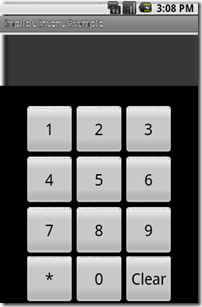
B3: Xây dựng giao diện trong main.xml, bước này ko quan trọng, chỉ là râu ria cho activity có cái giao diện:

Mã:

<?xml version="1.0" encoding="utf-8"?>

<LinearLayout xmlns:android="http://schemas.android.com/apk/res/android"

android:layout_width="fill_parent" android:layout_height="fill_parent"

android:orientation="vertical">

<TextView android:paddingTop="10px" android:id="@+id/number_display" android:layout_width="fill_parent" android:layout_height="wrap_content" android:textSize="30px" android:gravity="center" android:lines="2" android:background="#ffffff" android:textColor="#000000"/>

<TableLayout xmlns:android="http://schemas.android.com/apk/res/android"

android:layout_width="fill_parent" android:layout_height="fill_parent">

<TableRow android:gravity="center" android:paddingTop="30px">

<Button android:id="@+id/button1" android:layout_width="80px"

android:layout_height="80px" android:gravity="center" android:text="1" android:textSize="25px"/> <Button android:id="@+id/button2" android:layout_width="80px" android:layout_height="80px" android:gravity="center" android:text="2" android:textSize="25px"/>

<Button android:id="@+id/button3" android:layout_width="80px" android:layout_height="80px" android:gravity="center" android:text="3" android:textSize="25px"/>

</TableRow>

<TableRow android:gravity="center">

<Button android:id="@+id/button4" android:layout_width="80px" android:layout_height="80px" android:gravity="center" android:text="4" android:textSize="25px"/>

<Button android:id="@+id/button5" android:layout_width="80px" android:layout_height="80px" android:gravity="center" android:text="5" android:textSize="25px"/>

<Button android:id="@+id/button6" android:layout_width="80px" android:layout_height="80px" android:gravity="center" android:text="6" android:textSize="25px"/>

</TableRow>

<TableRow android:gravity="center">

<Button android:id="@+id/button7" android:layout_width="80px" android:layout_height="80px" android:gravity="center" android:text="7" android:textSize="25px" />

<Button android:id="@+id/button8" android:layout_width="80px"

android:layout_height="80px" android:gravity="center" android:text="8" android:textSize="25px" />

<Button android:id="@+id/button9" android:layout_width="80px" android:layout_height="80px" android:gravity="center" android:text="9" android:textSize="25px"/>

</TableRow>

<TableRow android:layout_width="fill_parent" android:layout_height="wrap_content" android:gravity="center">

<Button android:id="@+id/button_star" android:layout_width="80px" android:layout_height="80px" android:gravity="center" android:text="*" android:textSize="25px" />

<Button android:id="@+id/button0" android:layout_width="80px" android:layout_height="80px" android:gravity="center" android:text="0" android:textSize="25px"/>

<Button android:id="@+id/button_clear" android:layout_width="80px" android:layout_height="80px" android:gravity="center" android:text="Clear" android:textSize="25px"/>

</TableRow>

</TableLayout>

</LinearLayout>

LinearLayout chứa 1 TextView để hiển thị số nhấn, 1 TableLayout có các Button tương ứng với các số và 1 Button để clear cho TextView.

Hướng dẫn lập trình cơ bản với Android phần 15

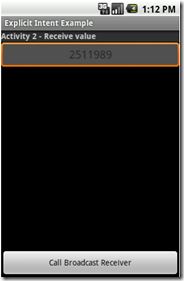
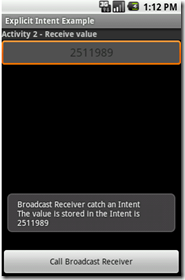
B6: Tạo BroadCast Receiver để nhận Intent mà Activity2 gửi tới -> Tạo 1 file Receiver.java trong at.exam -> Nội dung:

Mã:

package at.exam;

import android.content.BroadcastReceiver;

import android.content.Context;

import android.content.Intent;

import android.widget.Toast;

public class Receiver extends BroadcastReceiver{

@Override

public void onReceive(Context context, Intent intent) {

long value = intent.getLongExtra("new value", -10) + 10;

Toast toast = Toast.makeText(context, "Broadcast Receiver catch an Intent"+ " \n" + "The value is stored inthe Intent is "+ String.valueOf(value), Toast.LENGTH_LONG); toast.show();

}

}

Code không hề khó hiểu, và mình cũng đã add comment. Chỉ cần lưu ý ở đây là Toast là lớp để hiển thị một thông báo đơn giản trong 1 khoảng thời gian cố định, và ko thể thay đổi thời gian này T_T (why???) chỉ có thể chọn giữa LENGTH_SHORT với LENGTH_LONG

B7: Bổ sung thêm thông tin về component mới vào AndroidManifest.xml:

Mã:

<?xml version="1.0" encoding="utf-8"?>

<manifest xmlns:android="http://schemas.android.com/apk/res/andro id"

package="at.exam" android:versionCode="1" android:versionName="1.0">

<application android:icon="@drawable/icon" android:label="@string/app_name">

<activity android:name=".Activity1" android:label="@string/app_name">

<intent-filter>

<action android:name="android.intent.action.MAIN" />

<category android:name="android.intent.category.LAUNCHER" />

</intent-filter>

</activity>

<activity android:name=".Activity2"></activity>

<receiver android:name=".Receiver"></receiver>

</application>

<uses-sdk android:minSdkVersion="3" />

</manifest>

tai lieu lap trinh android tai lieu lap trinh androidtai lieu lap trinh android